Are you someone who needs to switch between the email clients? Or does your business require you to switch between different email clients? In that case, having to convert from one format to another may be quite a difficult task.
You might have been struggling to migrate your digital life from a platform like Thunderbird, Apple Mail, or a downloadable Google Takeout archive over to Microsoft Outlook. You have likely hit a frustrating technical brick wall.
The problem here is the format incompatibility. Most of the email clients use an MBOX file. It is a continuous string of text from all your mails. But, Outlook uses its own native format. Yes, we are talking about PST – Personal Storage Table.
This is where you need a tool that converts an MBOX file into a PST file. We came across a tool from Stellar that can efficiently handle this task. Let us examine the tool and find how it converts your MBOX files into PST.
What’s a Stellar Converter for MBOX?
Stellar Converter for MBOX is a comprehensive software. It is designed to convert MBOX files to various formats such as PST, EML, MSG, RTF, and HTML. The tool can directly convert the MBOX files directly into PST with no intermediate steps.
This MBOX to PST converter supports more than 17 email clients. These include Google Takeout, Mozilla Thunderbird, Apple Mail, Entourage, Eudora, PocoMail, SeaMonkey, Netscape, Opera Mail, and others.
Stellar converter for MBOX is available in two variants. If you are in a hurry or using the service on someone else’s computer, you can choose the online version. If you are a frequent switcher between the multiple email clients, you can choose the desktop version.
We will review both the options to help you use either of them as per your needs.
Online – Stellar Online MBOX to PST Converter
Let us say you have a modest email history and want to move it to Outlook. You can choose the Free online MBOX to PST converter version for a quick solution. It runs flawlessly across Windows, Mac, and Linux because it happens entirely in the cloud.
You do not need to install anything on your computer. The tool works with over 18 email clients that include Thunderbird, Apple Mail, Google Takeout, and similar clients.
How does Stellar Online MBOX to PST Converter work?
Working with the online version of the Stellar MBOX to PST converter is quite easy and works completely free for up to 100 MB files.
Step 1: Launch the Stellar MBOX converter online
Fire up your browser and visit the Stellar Online MBOX to PST converter page.
Step 2: Upload the MBOX file
Click on Upload MBOX File and upload your MBOX files.
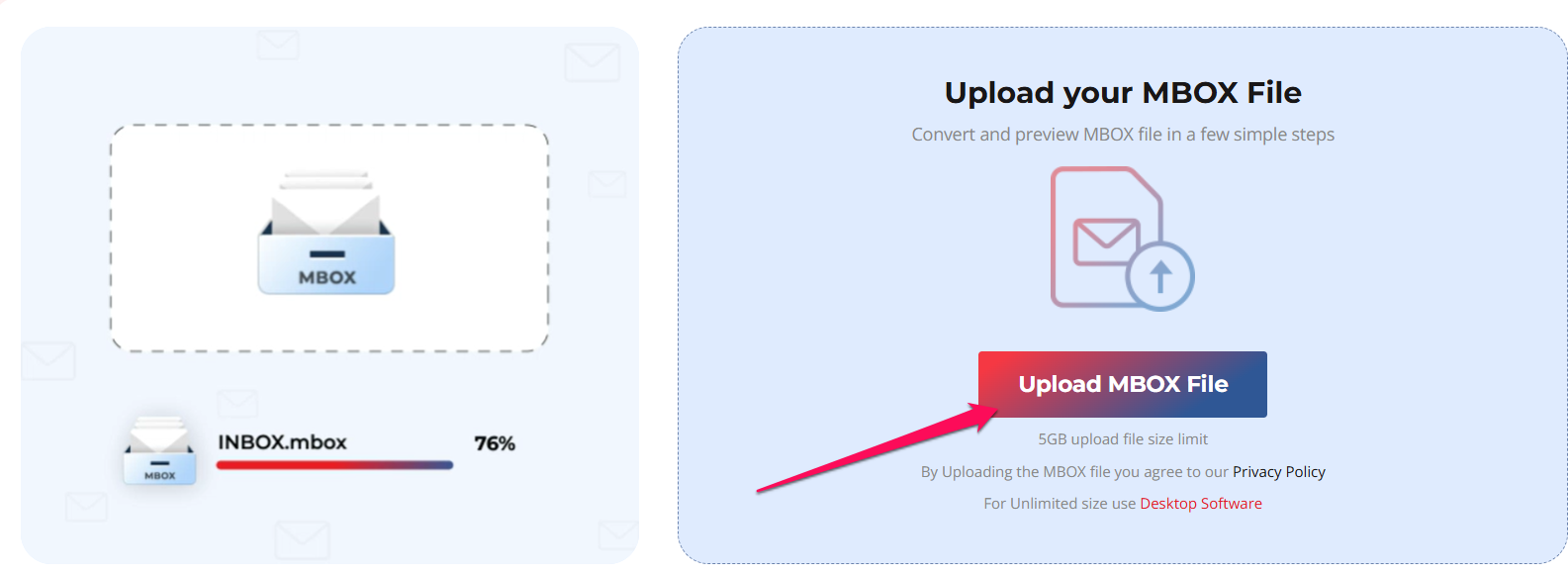
Step 3: Wait till the MBOX file is extracted
The tool will begin extracting the MBOX file and upload it to the software. Choose Start Conversion to begin converting it into PST.
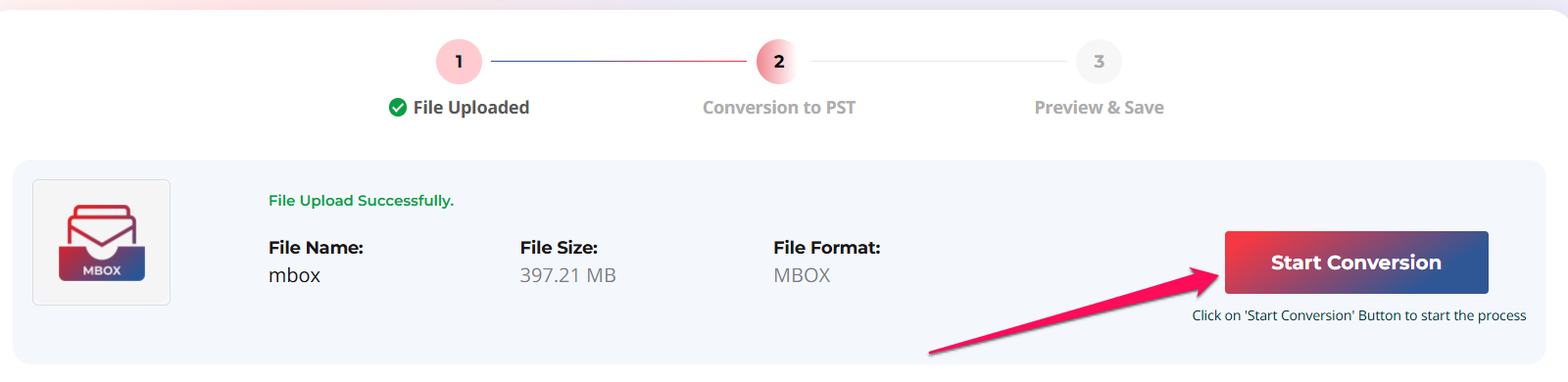
Step 4: The file is converted
The tool will analyse the file and then convert it into a PST file. You will be notified when the conversion begins.
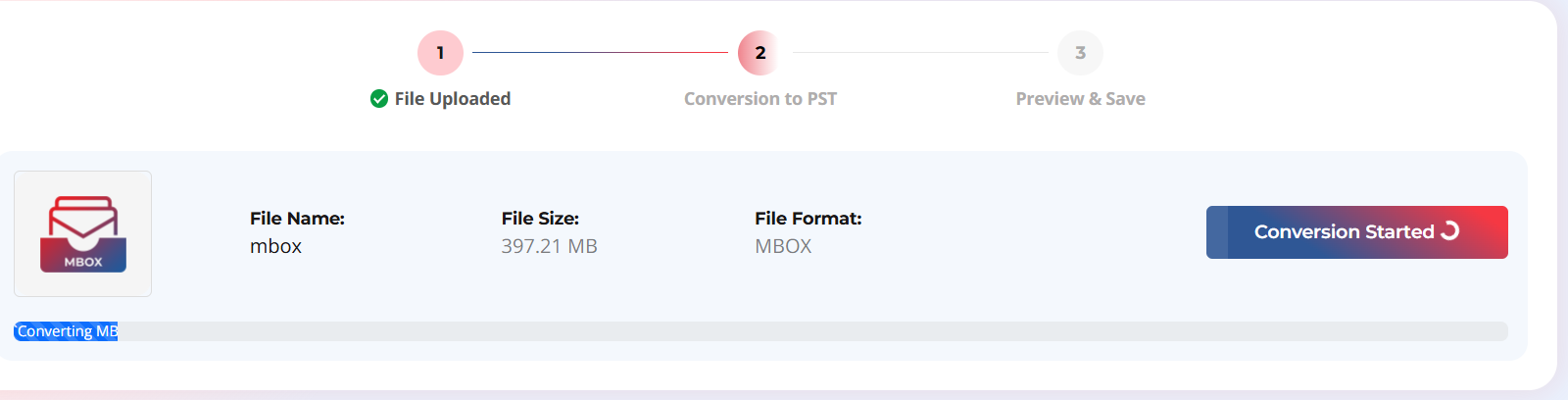
Step 5: Preview and save the file
Once the conversion is completed, the tool will generate a preview. You can preview the file and save it. Your Outlook client should be able to access the file.
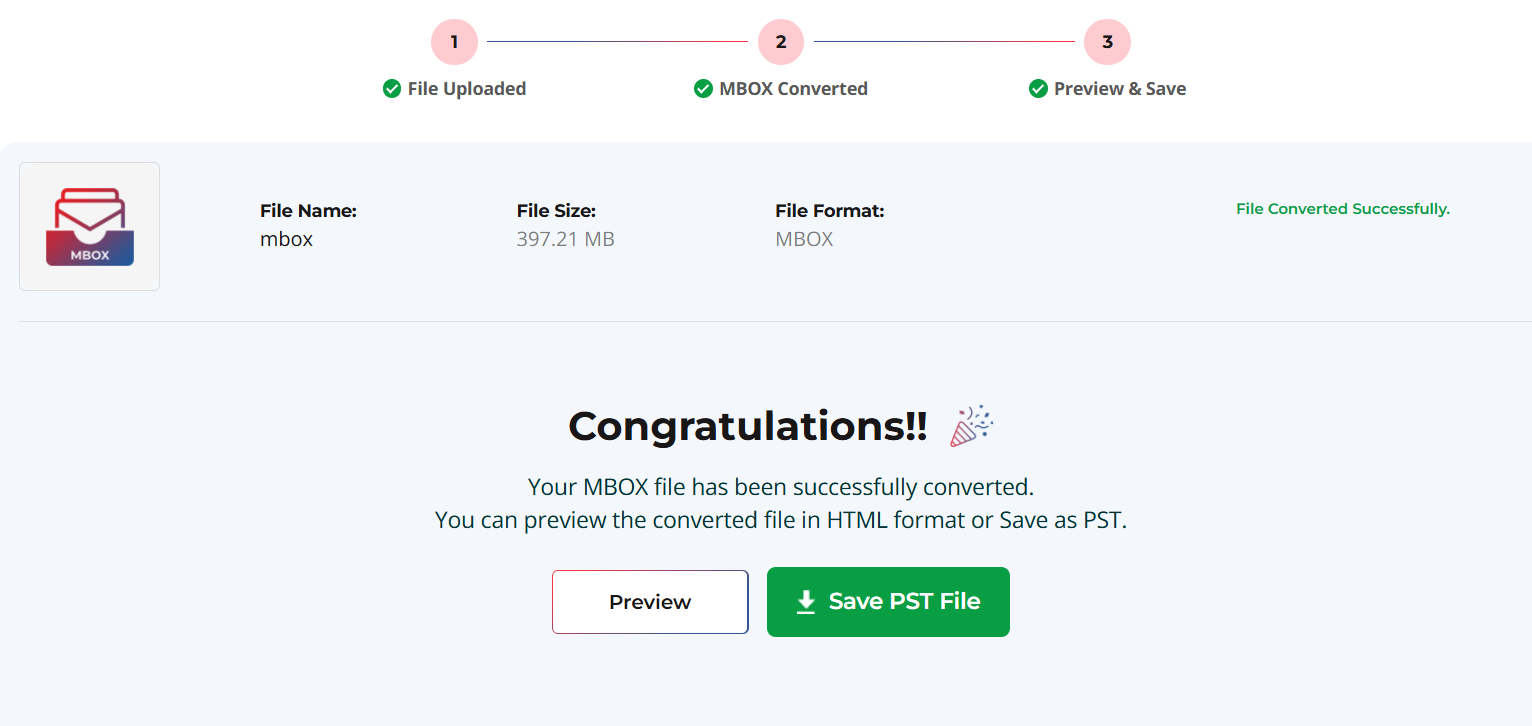
Here is a preview of the PST file that we just got converted:
Pricing and limits
The Stellar Online MBOX to PST Converter service offers you free download of your PST file if the file is under 100 MB in size. The converted file is available for download for 24 hours.
If the file size is above 100 MB, you will need to use the premium version at $19.99 per mailbox. The file size limit would be up to 5 GB. If you have any file above 5 GB, it is recommended to use the Stellar Converter for MBOX desktop version for your downloads.
Who should use the online version?
The online MBOX to PST converter is best suited for everyday users, small business mailboxes, and anyone looking for a quick, one-off conversion without system clutter.
Stellar Converter for MBOX (Desktop Software)
In case you are handling a complete migration of email clients or retrieving decade old local archives, an online tool may not work effectively. If you have email clients that exceed the 5 GB limit, you will invariably need to switch to the desktop version of the tool.
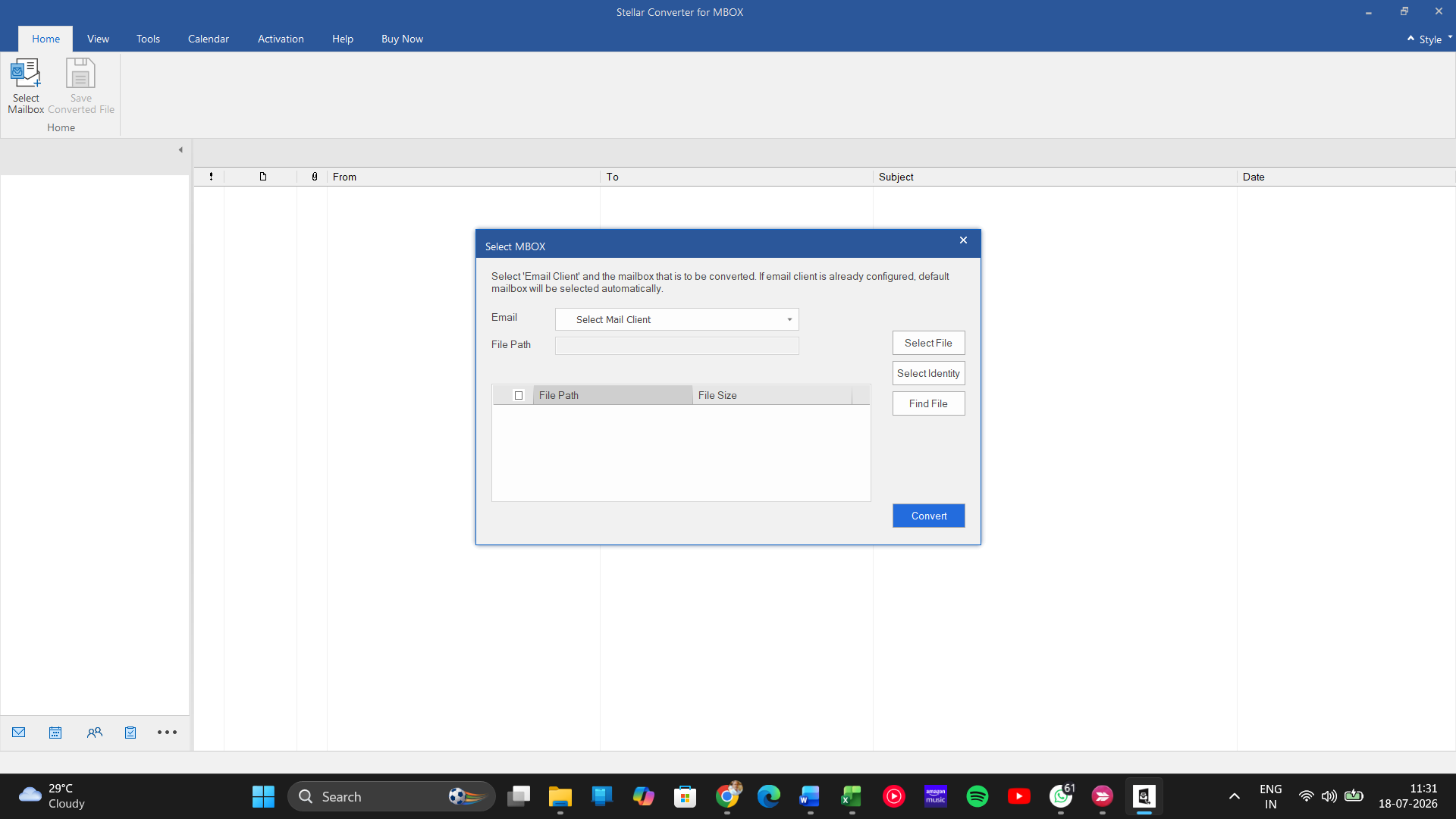
Unlike the web tool, this is a dedicated Windows application where all processing happens locally on your hardware. Your emails never travel over the internet, which is a major compliance win for sensitive corporate data.
Key features of Stellar Converter for MBOX
Here are a few key features that Stellar MBOX to PST converter offers you.
- Zero Limits & Batch Processing: There is no limit on the number of files you can process and convert. With the tool, you can line up multiple files and the tool will process them in batches.
- High degree of accuracy: Each of your email attachments, metadata, and folder structures are converted and retained. It can even extract heavy attachments, contact lists, and nested calendar events.
- Support for multiple file formats: Stellar MBOX Converter supports multiple file formats. These include PST, EML, MSG, RTF, and HTML. You can choose a format that suits your specific needs.
- Preview features: The converter can provide a preview of mailbox data before initiating the conversion process. That would mean you can make the necessary adjustments before actually converting the file.
How to Use Stellar Converter for MBOX?
Just as in the case of online converters, using the standalone version of the tool too is quite easy and straightforward.
Step 1: Launch Stellar Converter for MBOX on your computer
Download and install Stellar Converter for MBOX tool . Install it as you would install any other software on your desktop.
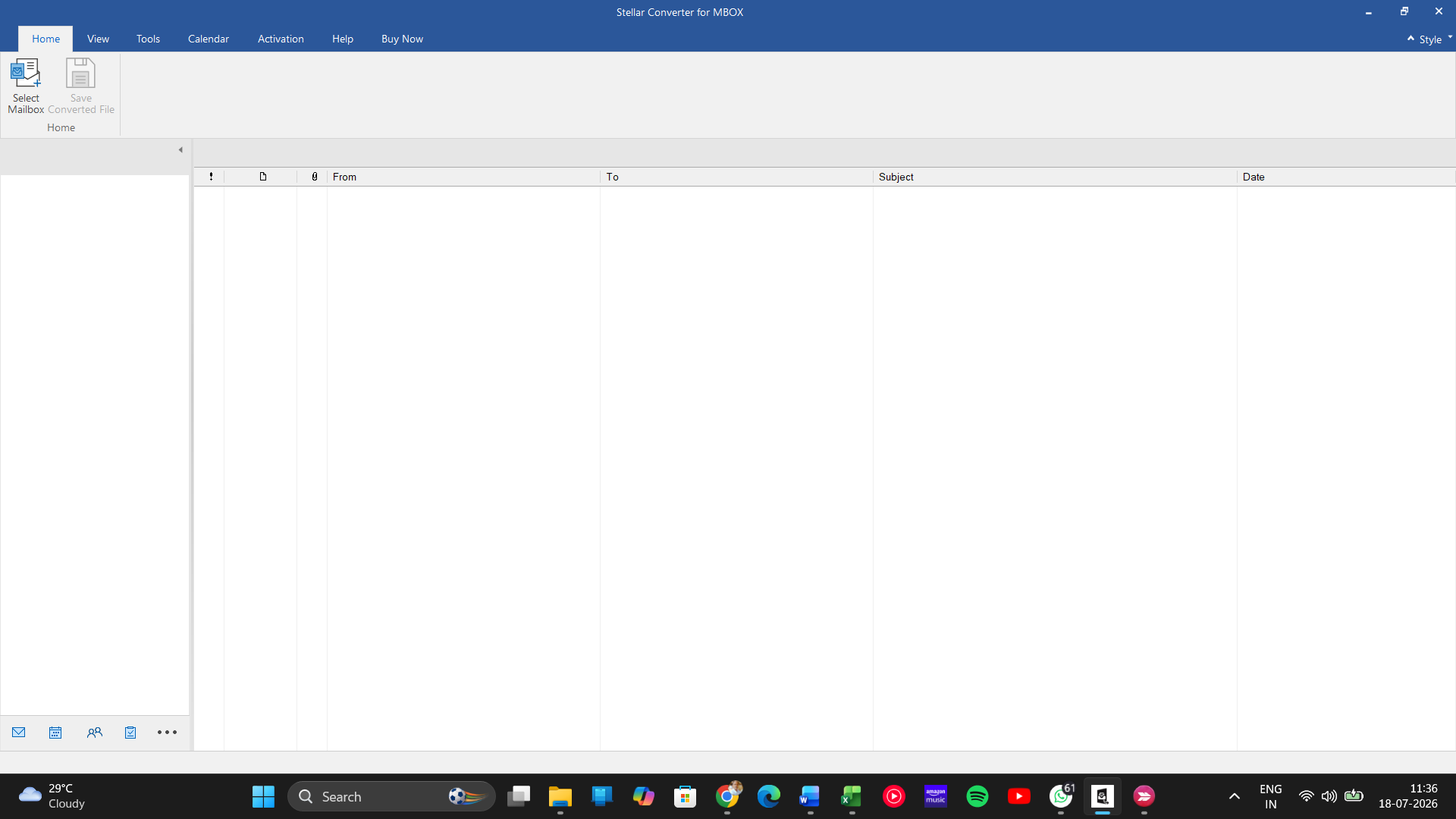
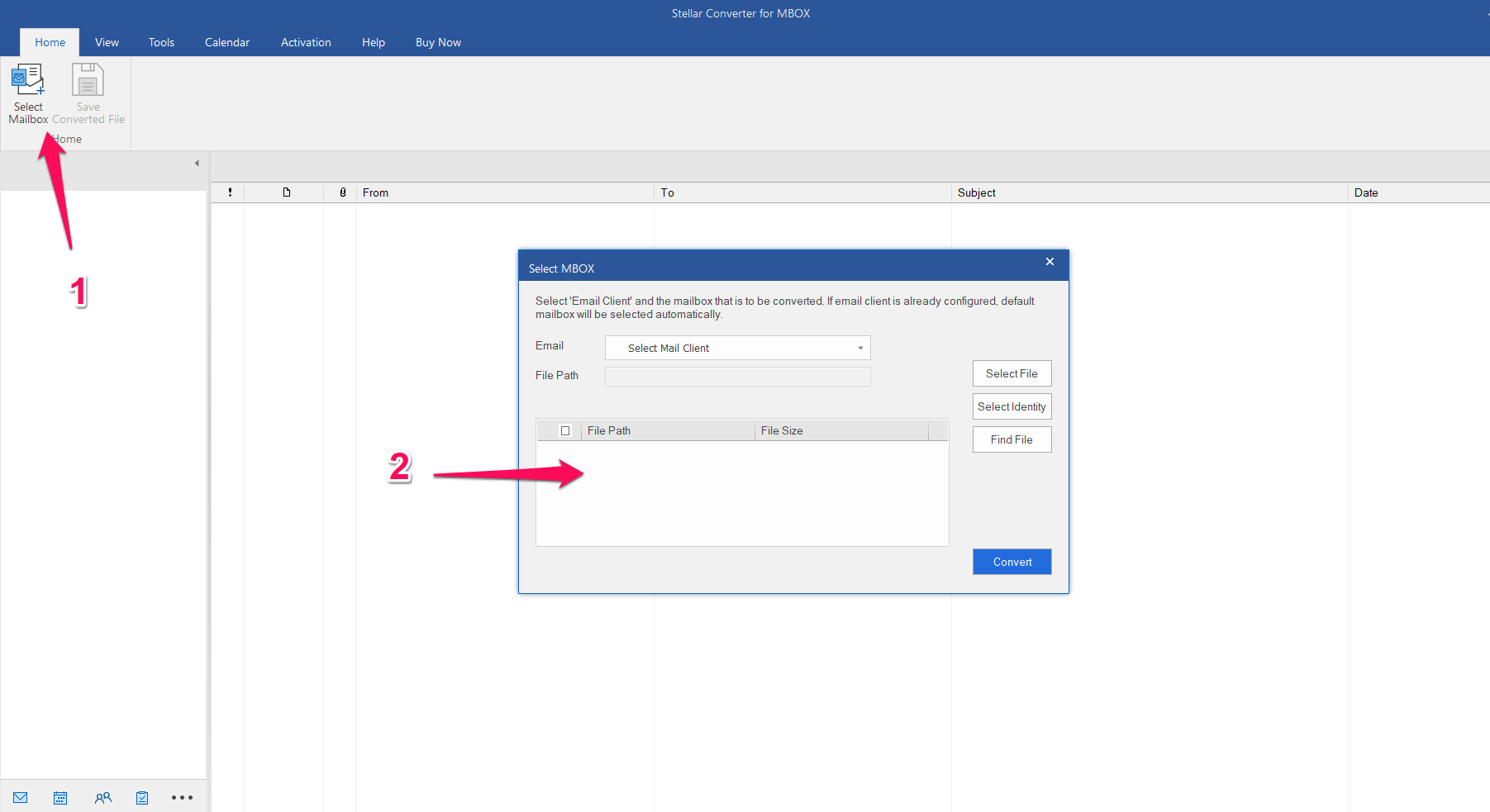
Step 2: Select the MBOX file
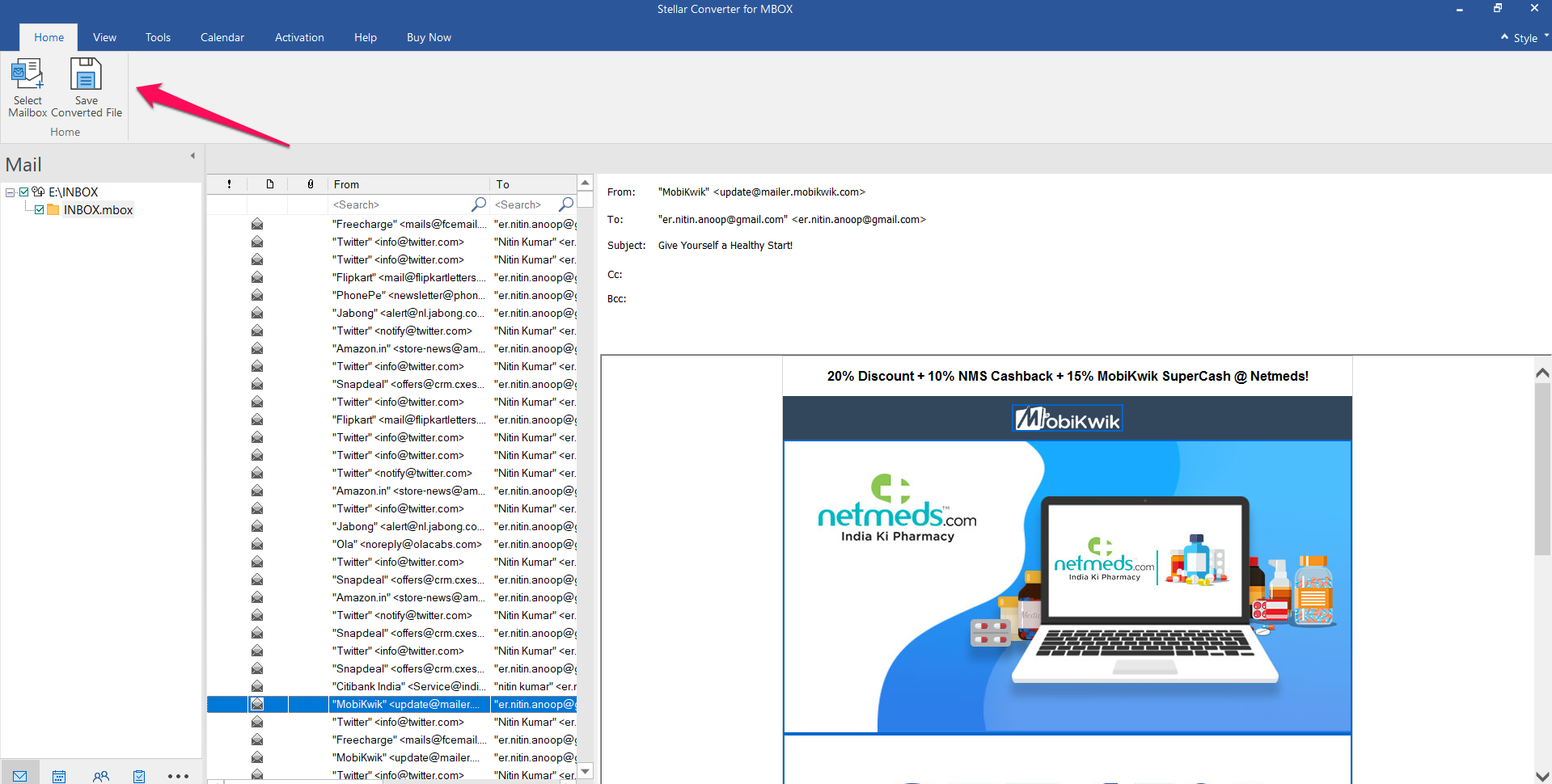
On launching the software, you will find the option to Choose your mailbox and then to choose your MBOX file.
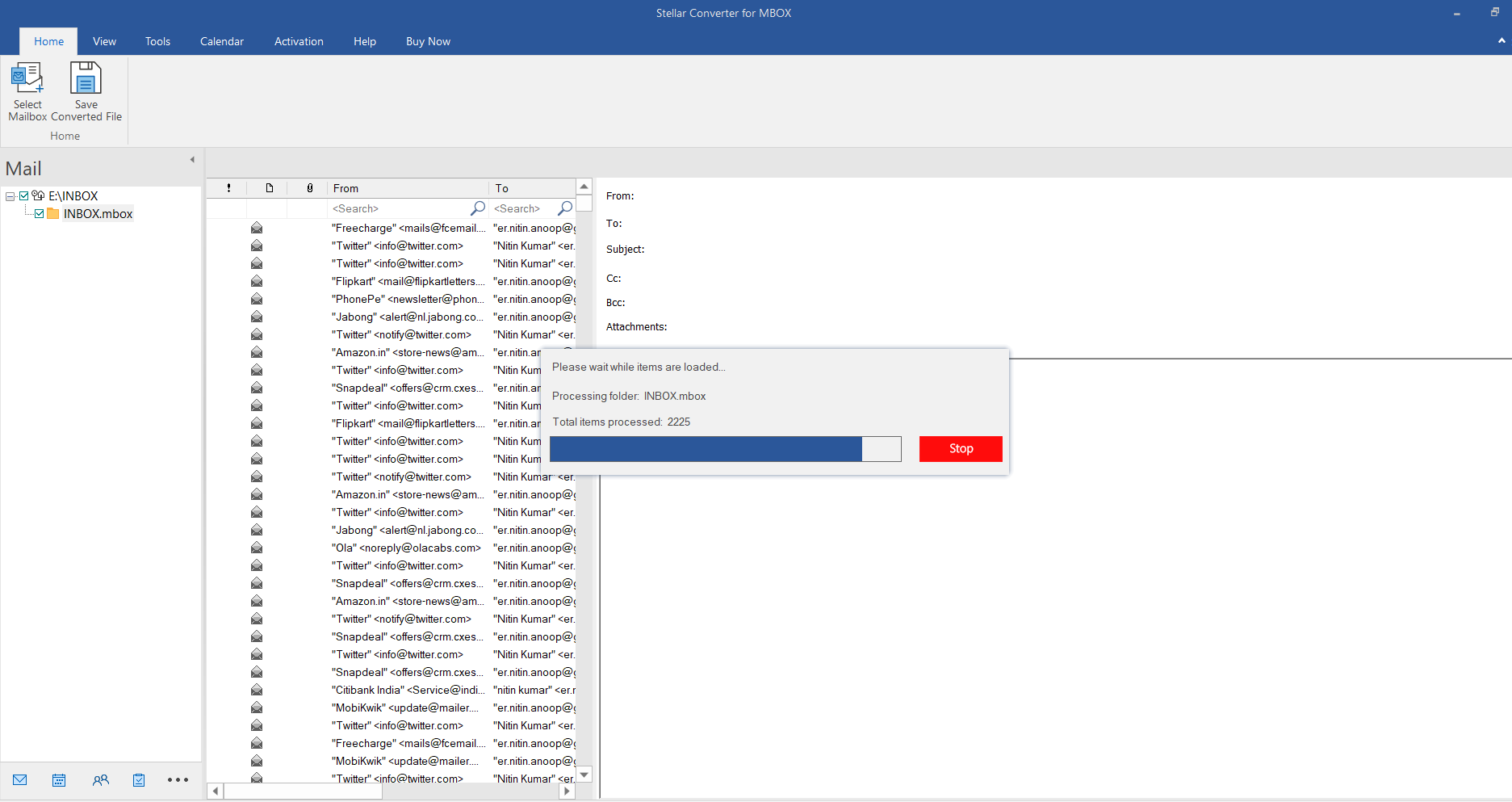
Step 3: The conversion process begins
The tool will begin extracting the files and you can preview them as they become visible. If your MBOX file is too large, the process may take a while to complete.
Step 4: Preview the content and select it
Check the content extracted and select the content that you want to convert. You can also select the specific folders that you want to convert. Once done, click on Save converted file.
Step 5: Save the file
Once you click on the option to save the converted file, you can choose the destination folder and other details.
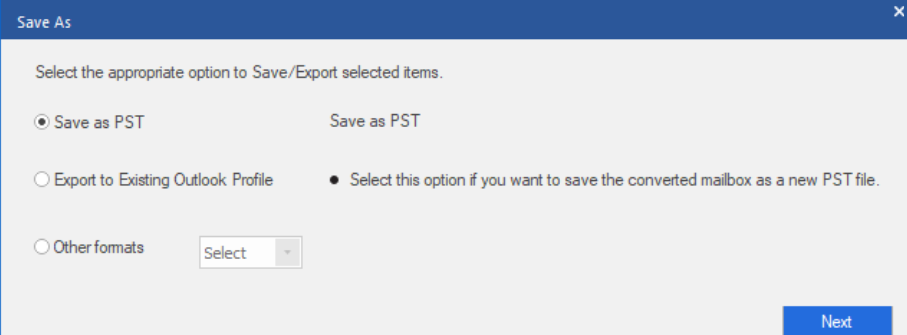
Once the file is saved, you can use your Outlook client to import it into your Outlook client.
You can work with the converted file in three ways:
- Save as PST File
- Export to Existing Outlook Profile
- Save as Other Formats
Who should use the standalone version?
Obviously, the standalone or desktop version works best for those looking for a complete migration. It is a perfect solution for IT administrators, power users with massive data archives (>5 GB), bulk migrations, and strict privacy environments where cloud uploads are banned.
Direct Comparison: When to Use Which?
The table below should give you an idea into whether you should use online version or the desktop version.
| Feature / Scenario | Online Web Service | Desktop Software |
| Ideal File Size | Under 100 MB (Free) up to 5 GB (Premium) | Unlimited (Handles massive 50 GB+ archives) |
| Installation | None — Works in any web browser | Windows installation required |
| OS Compatibility | Windows, Mac, Linux | Windows only |
| Processing Location | Secure Cloud (Deleted after 24 hours) | Local Machine (Data never leaves your local disk) |
| Batch Processing | Up to 5 files (Premium plan) | Unlimited simultaneous batch conversions |
| Advanced Exports | PST Download | PST, MSG, EML, or Direct to Office 365 / Exchange (Technician) |
Final Verdict
After putting both versions through their paces, Stellar Converter for MBOX Converter is definitely a worthy option and a reliable one at that. It comes with user-friendly interface, accurate conversion process, and support for multiple file formats. That should make it a really standout choice among the competitors.
Across our testing, the conversions were accurate folder structures, attachments, contacts, and calendar entries all came through intact and the ability to preview everything before saving takes the guesswork out of the process.
Which one you choose really comes down to your situation. If you’ve got a single mailbox and just want it in Outlook quickly, the online MBOX to PST service does the job in few minutes, with nothing to install and a free tier for smaller files. If you’re handling a full migration, large archives beyond 5 GB, multiple files, or sensitive data that can’t be uploaded to the cloud, the desktop software is the clear pick, it processes everything locally and has no file-size limit.