
AI video tools are everywhere right now. You type a prompt, and within minutes, you have a video. Sounds great, until you actually watch it. Some videos have blurry faces, weird lighting, and the worst? Choppy motion.
Even though the generation of video has become faster for creators, the quality is still an issue. This is a reason why many content creators wonder, “How to turn low-quality AI videos into professional content?” That’s exactly where Vmake helps.
In this article, we are going to discuss how Vmake can help improve the quality of low-quality AI-generated videos.
What Is Generative Video?
Generative video is video content created using artificial intelligence instead of a camera. You simply describe what you want and the AI builds it for you. You might use a prompt like:
- “A sunset over mountains”
- “A person walking in a futuristic city”
- “A bustling street market at night ”
- “A robot painting a mural in a colorful studio”
The AI tool would give you a full video based on it. Behind the scenes, these videos are created using models similar to AI image generators.
It extends across multiple frames to create motion. Afterwards, it compiles the frame to give you the full video.
The biggest advantage? You can create content quickly without needing a full production setup.
Why You Need a Video Enhancer for AI Videos
AI-generated content rarely comes out looking finished. What you get feels more like a rough version than something ready to publish. You might notice that the video looks slightly off. The small issues can make a big difference, especially if you’re using the video for anything public facing. That’s why creators use tools to enhance quality of AI videos before sharing them publicly. Let’s discuss some reasons why most creators use video enhancers for AI videos.
Fix Low Resolution
Videos created with the help of AI tools are generally of poor resolution. This makes them appear dull on the screen. A video enhancer can help you increase the resolution of the video. Plus, it makes it appear sharper so it can get better user engagement.
Sharpen Blurry Details
AI tools are generally not very good at capturing details in the videos. This happens especially in the case of human faces or other moving objects in the video. A video enhancer can help you enhance these details. In fact, it can make everything appear crispier in the video.
Improve Colors and Lighting
Many AI-generated clips look flat or poorly balanced. Enhancers adjust brightness and colors to make the video feel more visually appealing.
Smooth Out Motion
Oftentimes, frames don’t flow properly, which makes the video look jumpy. A video enhancer helps smooth transitions so the motion feels more consistent. This helps viewers to understand the video in a better way.
Make Your Content Ready to Publish
Raw AI videos often feel unfinished. By enhancing them, you turn a rough clip into something you can confidently post on various platforms.
How to Enhance AI Videos Using Vmake
You don’t need editing skills to improve AI-generated videos. With Vmake free video enhancer, you can enhance your video in just a few steps.
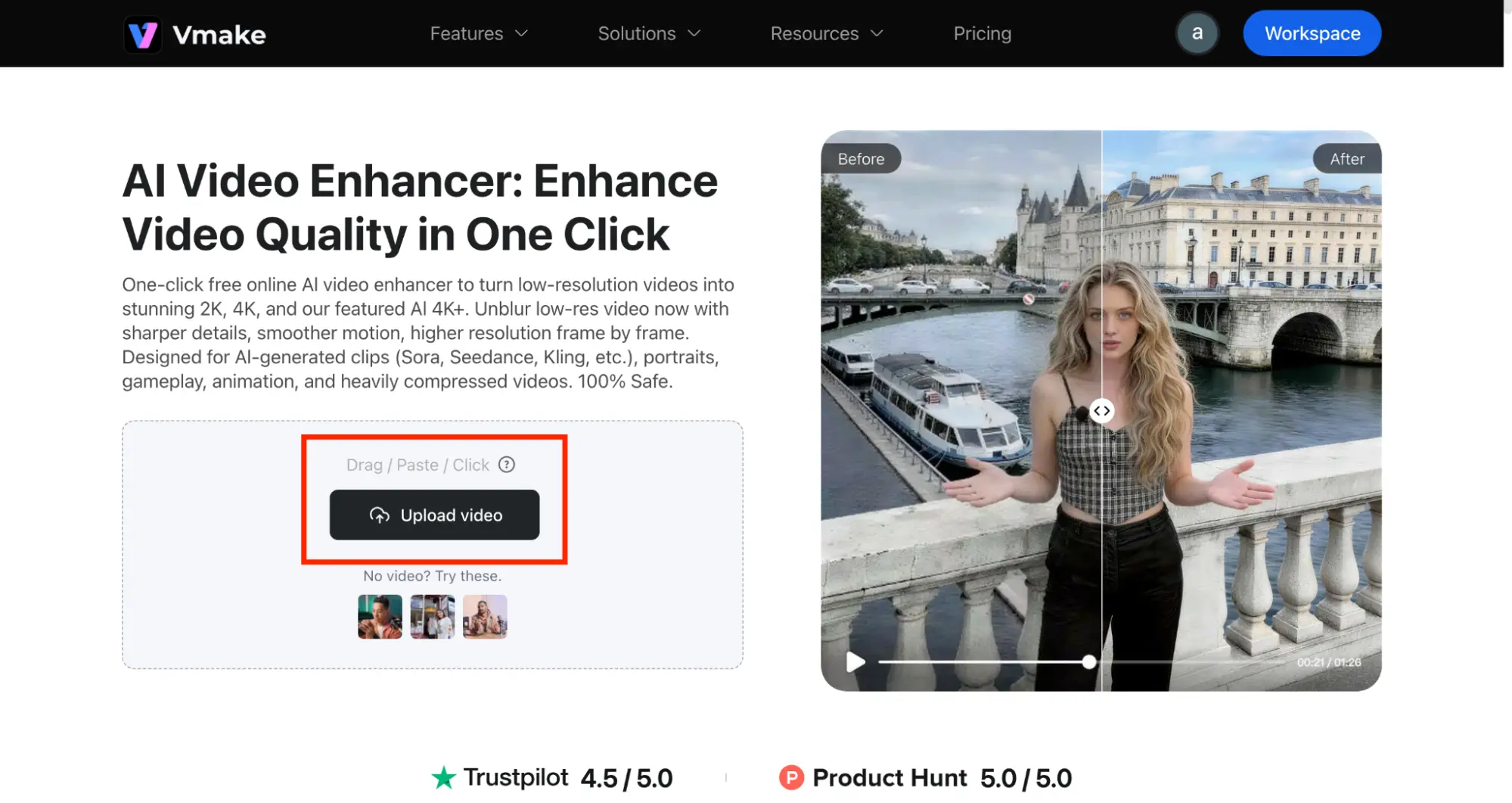
Step 1: Upload Your Video
Start by uploading your AI video to the platform. You don’t need to worry about formats.
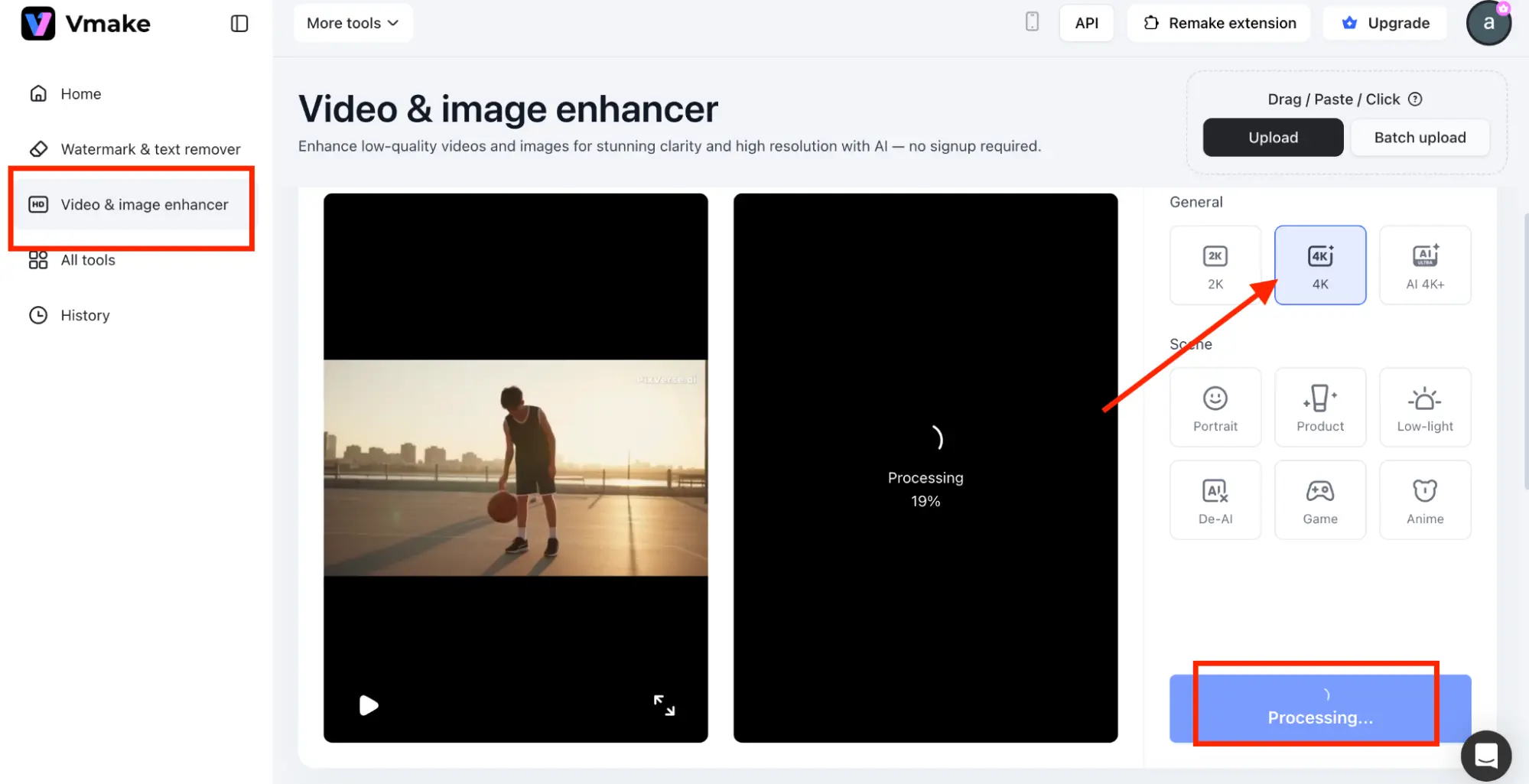
Step 2: Choose Enhancement Settings
Select how you want to enhance the video. On the right side, you’ll see options like resolution upgrade. Choose between 2K or AI 4K+ to improve video quality. You may pick any of these resolutions.
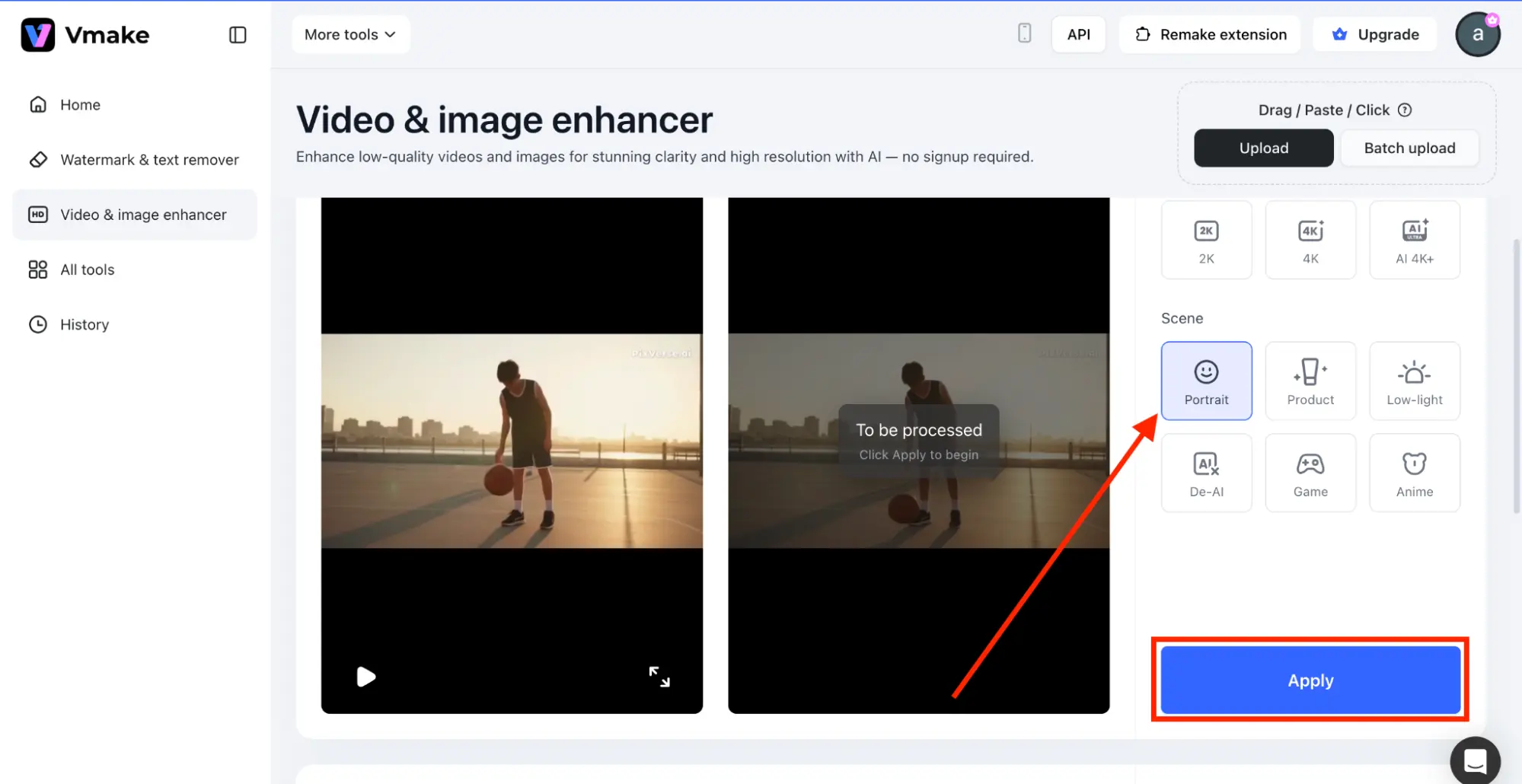
Step 3: Select the Scene
You may also do scene selection. Pick a mode based on your content, such as Portrait, Product, Low-light, Game, Anime and De-AI.
Step 4: Preview the Video
Preview the updated video. Check if the details look sharper. Also, check if the colors feel more natural.
Step 5: Hit Download
Download the enhanced version when you’re satisfied with the result.
Why Vmake Stands Out for Improving Low-Quality AI Videos
While many tools offer basic fixes, Vmake focuses specifically on improving AI-generated content. Here is why it stands out.
One-Click Enhancement
Vmake keeps the process simple. You don’t need to adjust complex settings or understand editing tools. With just one click, you can enhance your video and instantly see better results.
Upscale to AI 4K+
Low-resolution videos often look unprofessional. Vmake upgrades your clips to higher resolutions. This means you can upscale AI video to 4K. This makes them sharper and more visually appealing.
Advanced Detail Recovery
Blurry faces and unclear objects are common in AI videos. Vmake improves clarity by restoring fine details, so your content looks crisp instead of washed out.
Smoother Motion Frame by Frame
AI-generated videos often suffer from choppy or inconsistent motion. Vmake processes each frame carefully to create smoother transitions and more natural movement.
Conclusion
Now that you know how to turn AI videos into professional content, it is time to put what you have learned into practice by using Vmake. This means you can transform your videos. Before you know it, they will be turned into something that looks really professional. It will be something you will be proud to share anywhere.




Add Comment