
In the digital world we live in, OnlyFans has become one of the most popular options as the best hub for content creation(Mostly mature content though). But, there are not many creators on OnlyFans who let the fans and subscribers download or record the content available on the platform.
So, have you ever wondered how to screen record OnlyFans? Even when we find this query quite common, it is quite important to focus on the ethical and legal implications of recording OnlyFans live streams or using an iPhone to capture content.
Why People Want to Screen Record OnlyFans?
Well, there are several reasons that people want to screen record OnlyFans videos and live streams.
Some of these reasons include:
- Watching content offline when internet access isn’t available.
- Saving live stream moments they paid for.
- Revisiting tutorials or fitness routines provided by creators.
Of course, your intention in screen recording OnlyFans may be completely personal and practical. But, it is equally important to understand that screen recording the content from OnlyFans may violate copyright laws. If possible, make sure to seek consent from the content creator.
How to Screen Record OnlyFans (for Personal, Ethical Use)?
Assuming that you have valid reasons and a purpose for recording OnlyFans content, let us check out a few reliable options to screen record OnlyFans with ease.
How to Record OnlyFans Live Streams on Windows or macOS?
You can use tools like OBS Studio or ScreenFlow (on Mac) to screen record OnlyFans live streams.
We will check the steps involved in how to use OBS Studio to screen record OnlyFans videos:
- Install OBS Studio on your computer. It is available on both Windows and Mac.
- Create a new screen and give it a name
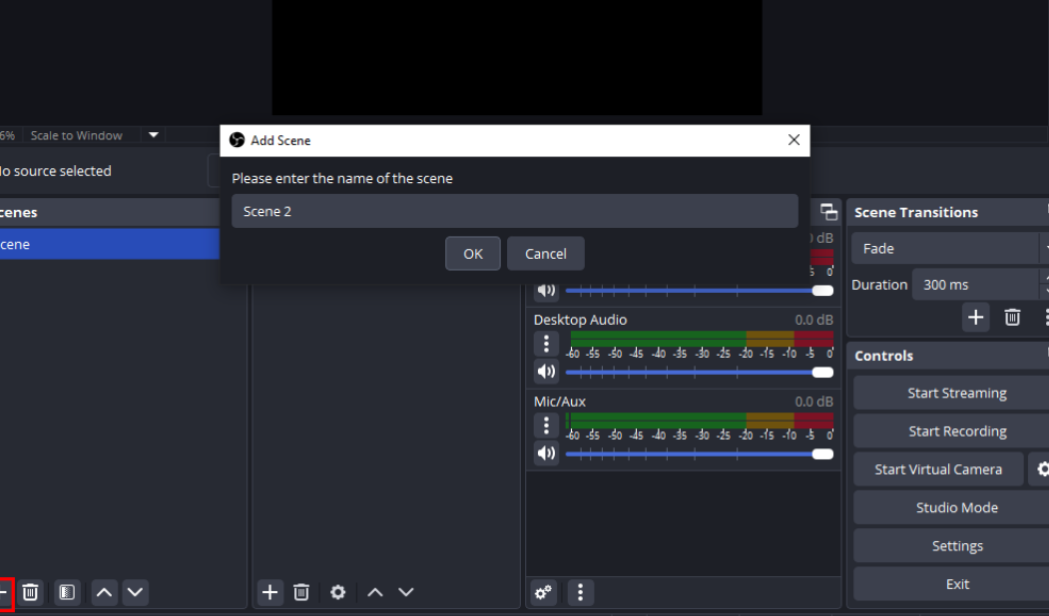
- In the Sources tab, click on Plus icon and select Windows capture.
- Go to Chrome and open OnlyFans.
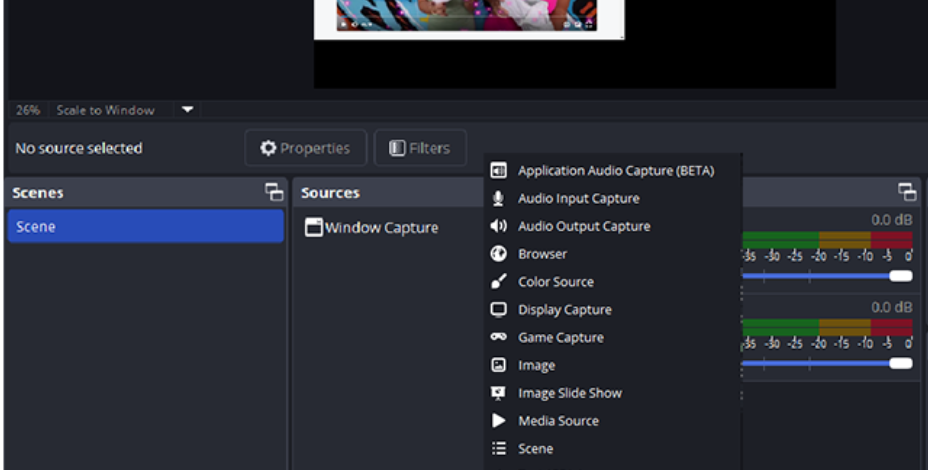
- Select Chrome in OBS Windows capture.
- Click on Start Recording
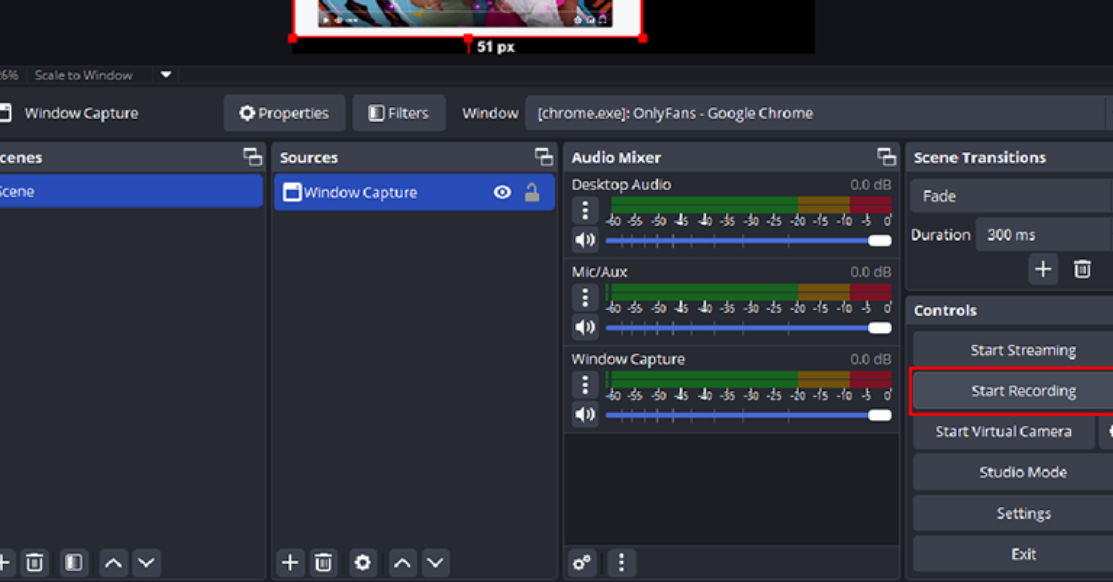
- Once the video is completed, stop recording.
You should find the recorded video in This PC -> Videos.
How to Screen Record OnlyFans on iPhone?
If you are on an iPhone and want to screen record OnlyFans on iPhone, the built-in screen recorder on your device should be an excellent option.
Enable Screen Recording:
- Go to Settings > Control Center.
- Scroll to find Screen Recording and tap the green ‘+’ to add it to your Control Center.
Open the OnlyFans Content:
- Open Safari or Chrome and log in to your OnlyFans account.
- Navigate to the content or live stream you wish to record (again, assuming you have permission).
Start Recording:
- Swipe down from the top-right corner (on iPhones with Face ID) or up from the bottom (on older iPhones) to open Control Center.
- Tap the Record button (a solid circle inside a ring).
- After a 3-second countdown, the screen recording begins.
Stop Recording:
- Tap the red bar at the top of the screen and confirm to stop.
- Your recording will be saved in the Photos app under Recents or Screen Recordings.
Important: Ensure your phone has enough storage and that Do Not Disturb is enabled to avoid pop-ups or interruptions during recording.
Is It Legal to Screen Record OnlyFans?
No, frankly speaking, it is neither legal nor ethically acceptable to record OnlyFans content without the creator’s permission. OnlyFans clearly states that the content is the intellectual property of the creator.
Sharing, distributing, or saving it through unauthorized means (including screen recording) is a breach of those terms and could result in legal consequences. Even when screen recording is not discouraged, it may be illegal in certain regions, depending on the copyright laws prevalent in your region.
Tip: If there’s content you truly value, consider asking the creator. Some of the content creators offer downloadable content or let you replay for subscribers.
Conclusion
While knowing how to screen record OnlyFans or how to record OnlyFans live streams can be helpful for subscribers, it’s crucial to remain ethical. Recording and distributing content without permission can lead to bans, lawsuits, and a breach of trust between you and the creators.
If a creator’s content means that much to you, support them by subscribing longer, engaging with their posts, or even tipping. Respect builds a better community for fans and creators alike. While we have provided the steps here on how to screen record OnlyFans, we would also wish to emphasize legality, ethics, and platform policies.
FAQs
Is screen recording of OnlyFans content traceable?
Yes, platforms can detect unauthorized recording, and your account could be banned. Always seek permission to be on the safer side.
Can you screen record OnlyFans on Android?
Yes, using the built-in screen recorder (available in Android 10+) or apps like AZ Screen Recorder.
Does OnlyFans notify creators if I screen record?
Currently, OnlyFans does not send a notification. However, creators may still notice or report suspicious behavior.
Disclaimer: This is only for educational purposes. You must not try to record restricted content without the permission.