

Quick Answer: If you forgot your Motorola phone’s PIN, password, or pattern, unlocking it without losing local data may be difficult on modern Android devices. Before resetting your phone, check whether an existing unlock feature or backup can help. If you decide to reset the device, you can use Motorola’s built-in Recovery Mode or consider a guided tool such as DroidKit, provided your model is supported.
Can DroidKit Unlock a Motorola Phone Without Losing Data?
If you want a simpler way to regain access to your Motorola phone, DroidKit Screen Unlocker is one option to investigate.
DroidKit provides a guided workflow for supported Android devices. However, screen unlocking may require erasing the device, and compatibility varies by model and Android version. Check the current product requirements before proceeding. Do not assume your photos, messages, or other local files will be preserved.
If keeping your data is your priority, try the following checks before using any unlocking tool.
3 Things to Check Before Resetting Your Motorola
Check Extend Unlock or Smart Lock
If you configured Android’s Smart Lock or Extend Unlock before being locked out, check whether a trusted device or other previously configured condition can still help you access your phone. Availability and behavior depend on your Android version and device state.
This feature is not a guaranteed way to bypass a forgotten PIN, and it generally cannot replace your primary credential in every situation.
Check Your Google Account and Backups
Confirm whether your contacts, photos, and other important information were synced or backed up. Google Photos, Google Contacts, and other services may hold copies of your data even if the files are no longer accessible locally.
Backups do not remove the screen lock, but they can reduce the impact of a factory reset.
Consider Your Android Version
Some older Android devices offered a “Forgot Pattern?” option after repeated failed attempts. This feature is associated with older Android versions and is generally unavailable on modern Motorola phones.
If your phone runs a recent Android version, do not rely on outdated tutorials that promise a universal, no-data-loss unlock.
Method 1: Reset Your Motorola Using Recovery Mode
If the available options do not restore access, a factory reset may be necessary. This process erases local data stored on the phone.
- Turn off your Motorola phone.
- Hold the Power and Volume Down buttons to open the bootloader menu. The exact procedure may vary by model.
- Use the volume buttons to select Recovery Mode and press Power.
- If the “No command” screen appears, follow the button sequence specified for your model to open the recovery menu.
- Select Wipe data/factory reset and confirm.
- After the reset finishes, select Reboot system now.
You may need to sign in with a Google account previously associated with the phone because of Factory Reset Protection (FRP). Confirm your account credentials before resetting.
Method 2: How to Unlock a Motorola Phone Using DroidKit
If you prefer a guided process instead of navigating Android Recovery Mode, DroidKit Screen Unlocker is an alternative to consider. Before starting, check whether your Motorola model and Android version are supported.
Step-by-Step Guide to Using DroidKit
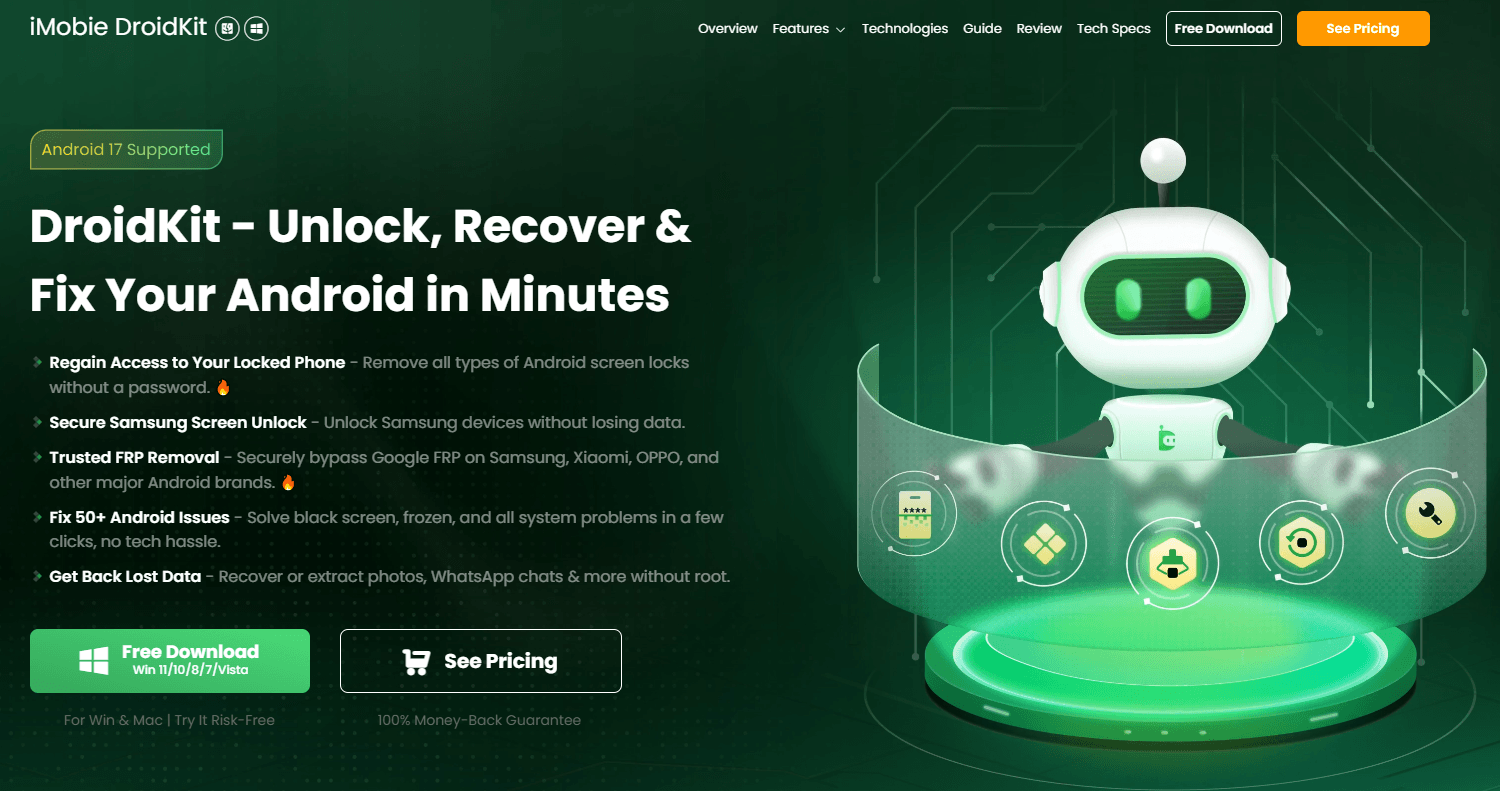
Step 1. Download and Launch DroidKit
Visit the official website, download DroidKit for your compatible Windows PC or Mac, and launch the program.
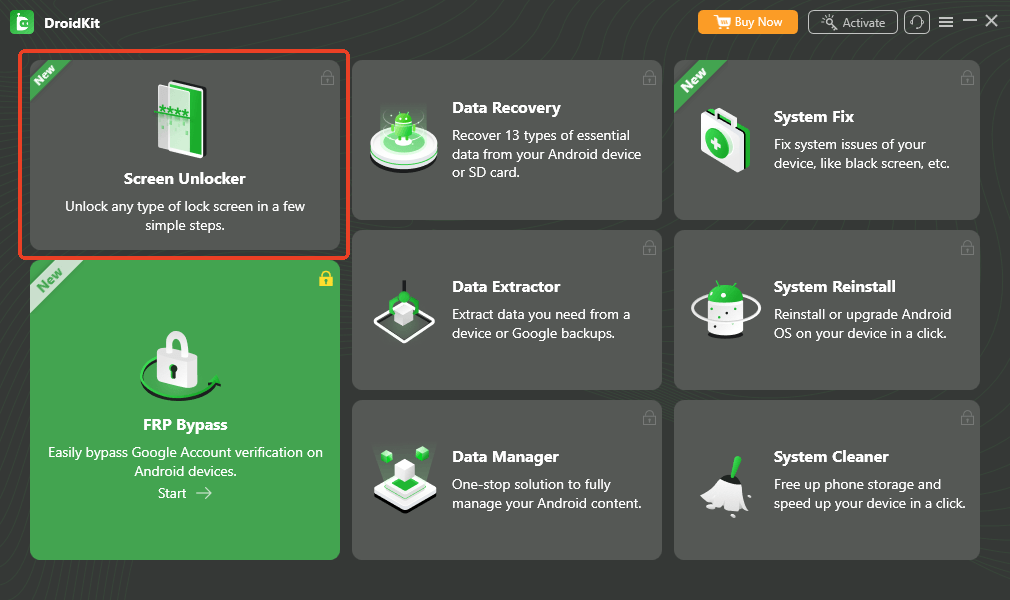
Step 2. Select Screen Unlocker
Open DroidKit and choose the Screen Unlocker feature from the main interface. Read the instructions displayed by the software before continuing.
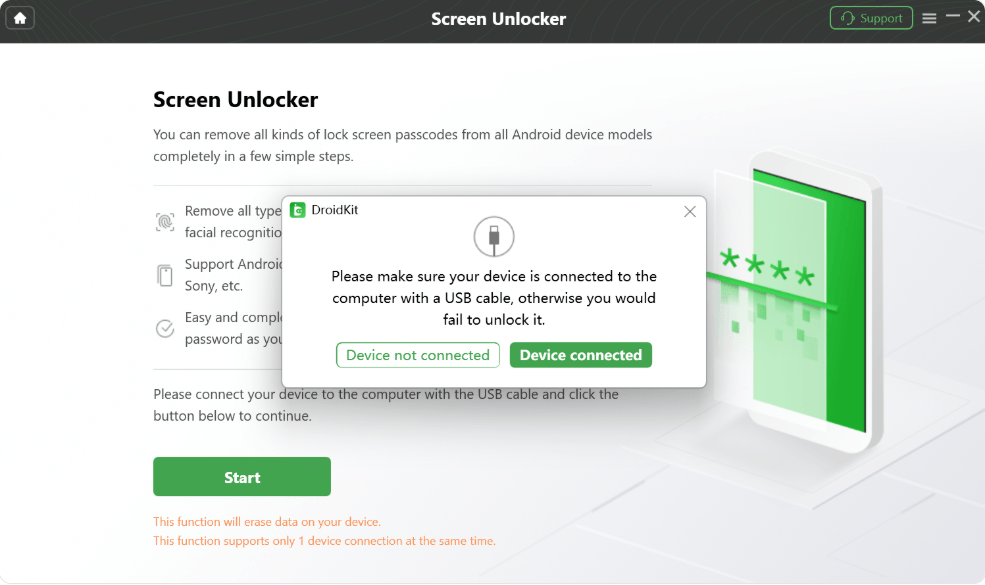
Step 3. Connect Your Motorola Phone
Connect your locked Motorola phone to the computer using a compatible USB cable. Follow the on-screen prompts. Depending on your device model and Android version, additional steps may be required.
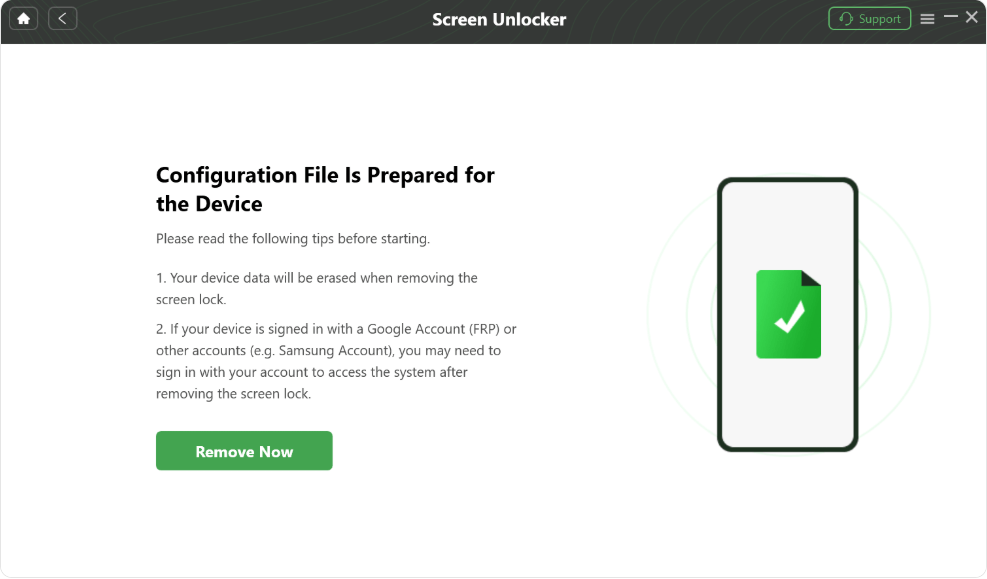
Step 4. Prepare the Configuration File
If prompted, click Start or the corresponding button shown in your version of DroidKit. Allow the software to prepare the required configuration files for your device. Follow the displayed instructions carefully.
Step 5. Follow the Device-Specific Instructions
DroidKit will guide you through the next steps supported for your device. Follow the prompts to complete the screen-unlocking process. The exact procedure may vary by model and software version.
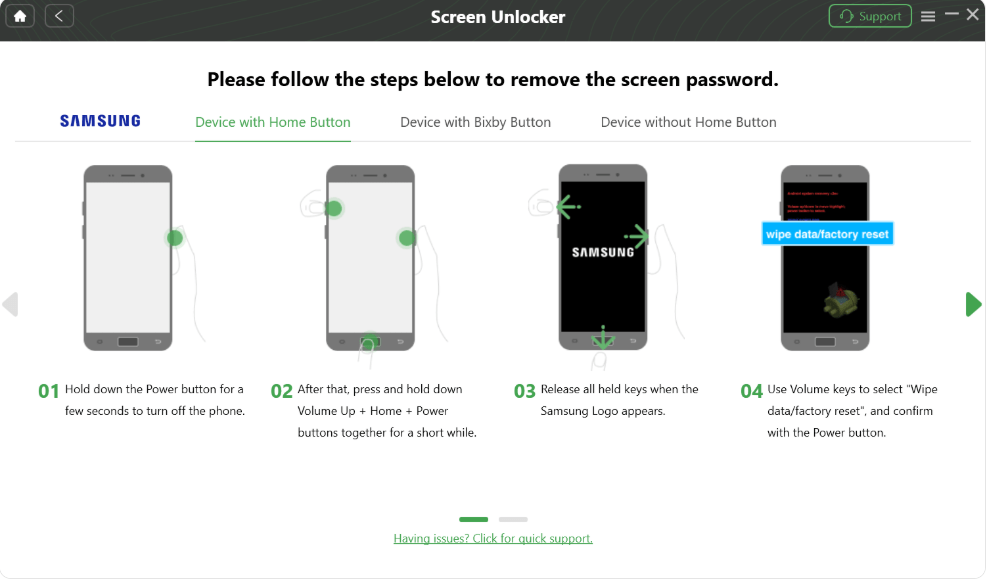
Step 6. Complete the Process and Set Up Your Phone
Wait for the software to finish and follow any instructions to restart or set up your phone. If a factory reset is required, you may need to sign in with the Google account previously associated with the device.
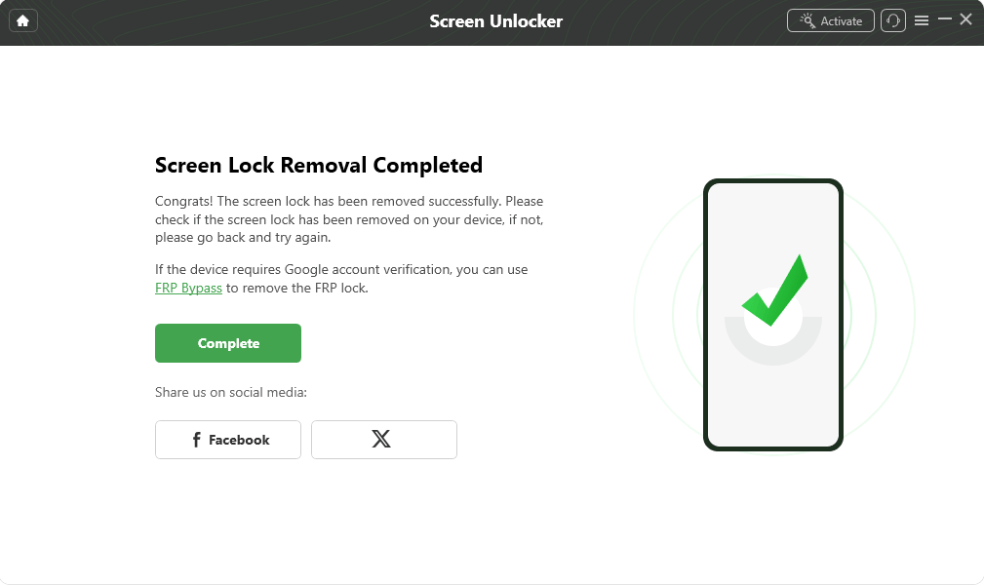
Important: DroidKit is a third-party tool, and compatibility and results vary by device. Its screen-unlocking process may erase local data. It is not a guaranteed way to bypass a forgotten password without data loss. Confirm the current compatibility requirements, pricing, and data-loss warnings before proceeding. If you prefer not to use third-party software, you can try the built-in Recovery Mode reset instead.
Recovery Mode vs. DroidKit
| Feature | Recovery Mode | DroidKit |
| Cost | No unlocking software required | Check current pricing |
| Equipment | Phone | Compatible computer and USB cable |
| Guidance | On-device recovery menu | Computer-guided workflow |
| Data loss | Factory reset erases local data | May erase local data during unlocking |
| Compatibility | Depends on device model | Depends on supported models and Android versions |
Frequently Asked Questions
Can I unlock my Motorola without losing data?
Possibly, if a previously configured feature still provides access or you can recover access through a supported method. For modern Android devices, there is no universal, legitimate method that guarantees removal of a forgotten screen lock while preserving encrypted local data.
Can ADB remove my Motorola password?
ADB is not a universal solution. USB debugging, prior computer authorization, device state, and Android security restrictions all affect whether commands can work. Avoid tutorials promising guaranteed results.
Does Google Find My Device unlock a forgotten PIN?
Remote erase functionality resets the device rather than preserving its local data. Check Google’s current device-finding options and instructions before taking action.
Will a factory reset delete my photos?
Photos and files stored only on the phone may be erased. Items already backed up or synced may be recoverable after setup, depending on your backup settings.
Does DroidKit erase Motorola data?
Its screen-unlocking process may require a reset and erase local data. Check the current instructions for your specific model before starting.
Final Recommendation
First, check existing unlock options, account access, and backups. If those do not help, choose between Motorola Recovery Mode and a compatible guided tool such as DroidKit. Both approaches may involve a factory reset, so confirm your backup status and Google account credentials before proceeding.